User Guide
The DNNTC Viewer is a transcription and verification interface for working with digitized tables and character-level OCR data. This guide explains how to navigate volumes, inspect scanned images, search text, and submit corrections.
1. System Overview
The interface is divided into three synchronized panels:
- Left Panel: Original scanned page image (IIIF viewer)
- Middle Panel: Structured transcription grid
- Right Panel: Search and navigation tools
All three panels are linked by shared volume/page state, meaning navigation updates all views simultaneously.
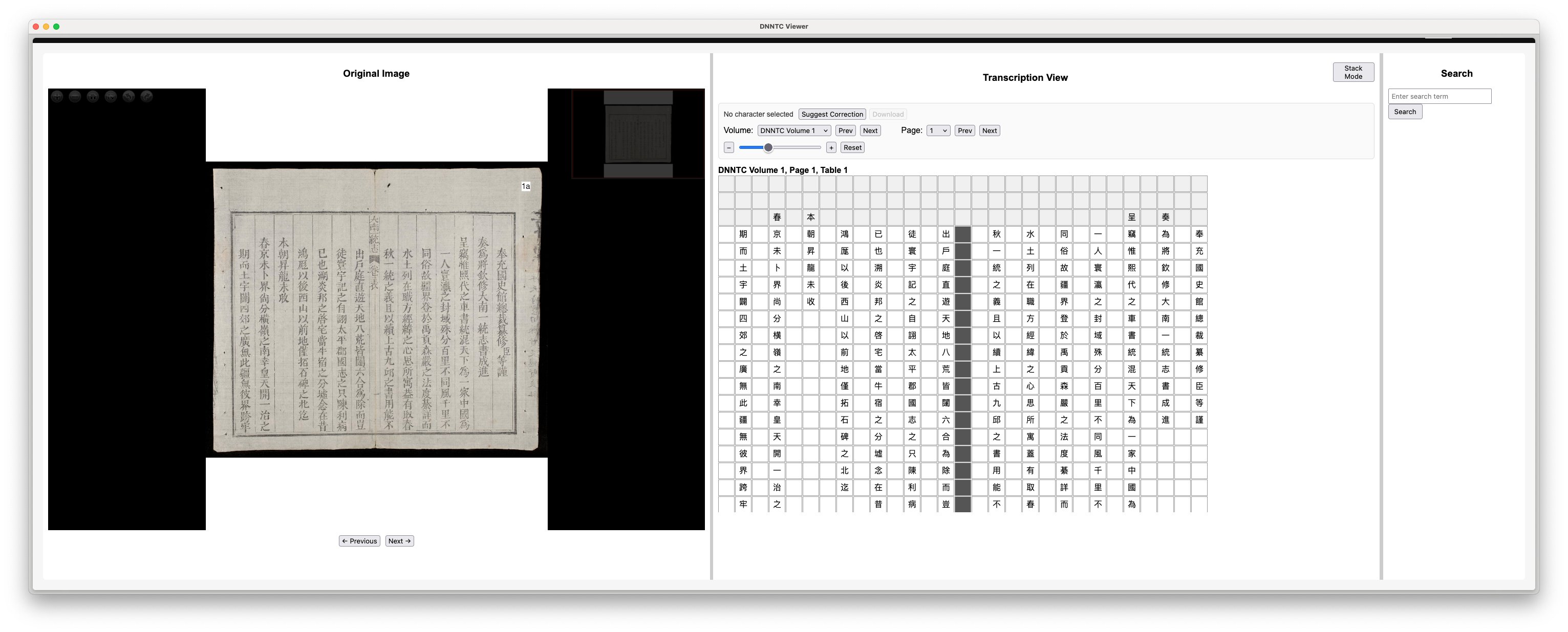 Screenshot 1: Full interface overview showing all three panels
2. Navigation
Volume Selection
Volumes represent separate manuscript or dataset collections. Use the dropdown menu in the middle panel to switch between volumes.
- “Prev” and “Next” buttons cycle through volumes sequentially
- Switching volume resets the page index automatically
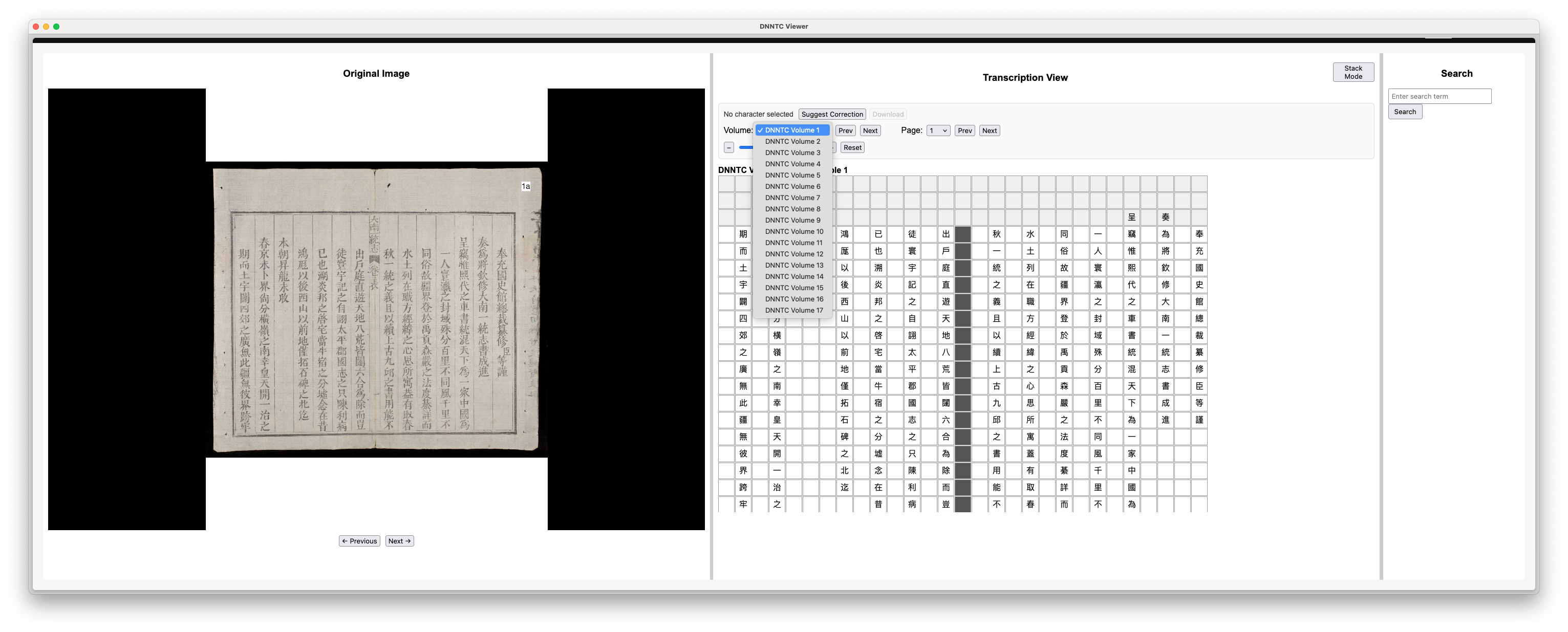 Screenshot 2: Volume dropdown and navigation buttons
Page Selection
Each volume contains multiple pages. You can navigate using:
- Page dropdown selector
- Previous / Next page buttons
Page changes synchronize:
- Left image viewer updates (scanned page)
- Middle transcription grid updates
3. Image Viewer (Left Panel)
The left panel displays the original scanned manuscript page using a deep zoom viewer. You can pan and zoom freely using mouse or trackpad gestures.
- Scroll to zoom
- Click + drag to pan
- Double click to zoom in
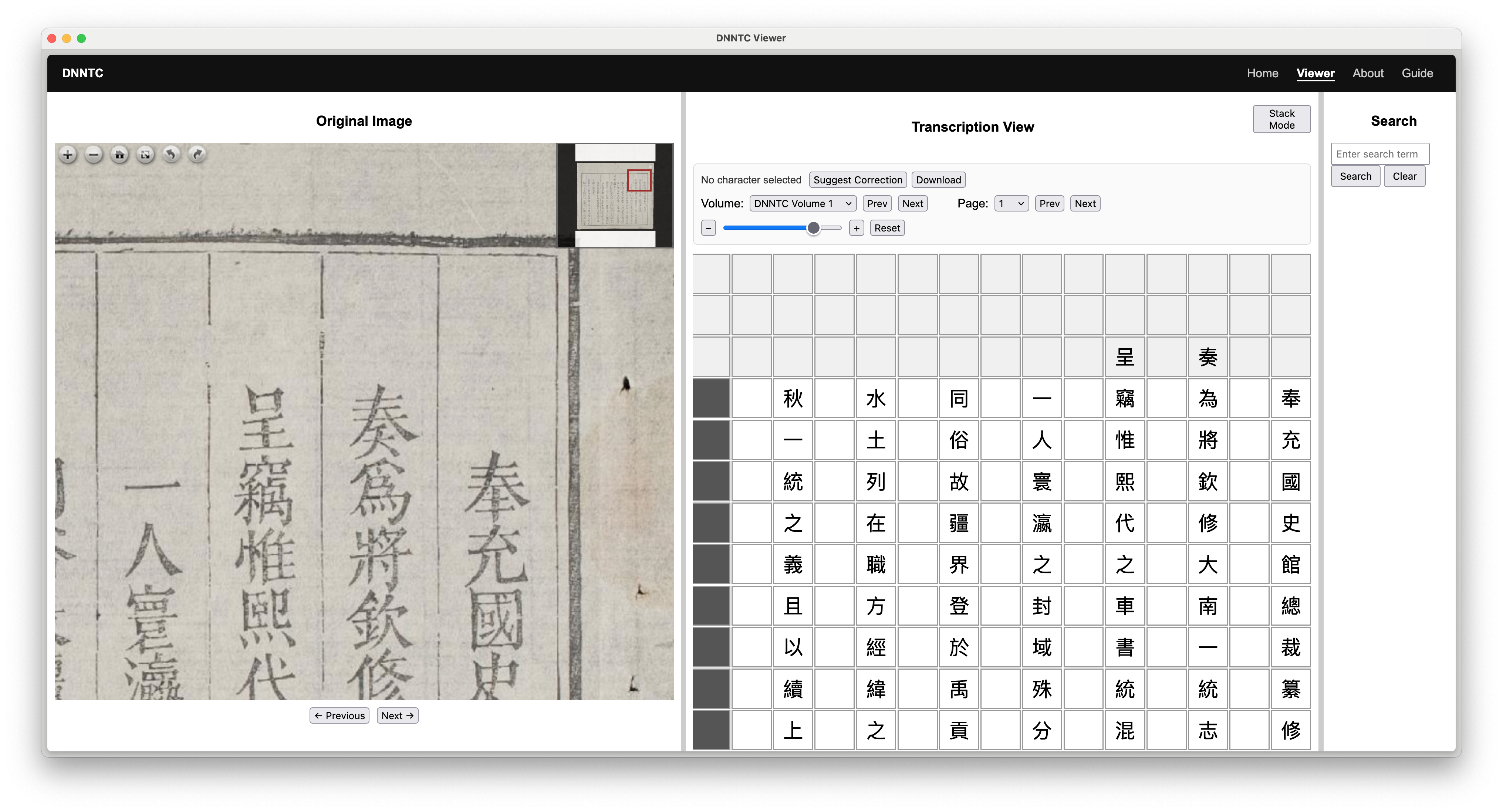 Screenshot 3: Image viewer zoomed into a character region
4. Transcription Grid (Middle Panel)
The transcription grid displays structured OCR output as a spatial character layout. Each cell corresponds to a row and column in the original table structure. Characters are individually selectable, which allows you to create a suggestion report.
5. Stack Mode (Document View)
Stack Mode changes the interface from single-page view to continuous scrolling document mode. Instead of switching pages, all pages are rendered vertically in sequence.
When to use Stack Mode
- Reading across multiple pages
- Contextual transcription review
- Searching across full volume layout
Behavior
- Pages load progressively in vertical blocks
- Scrolling automatically updates the active page
- Image viewer syncs with visible page section
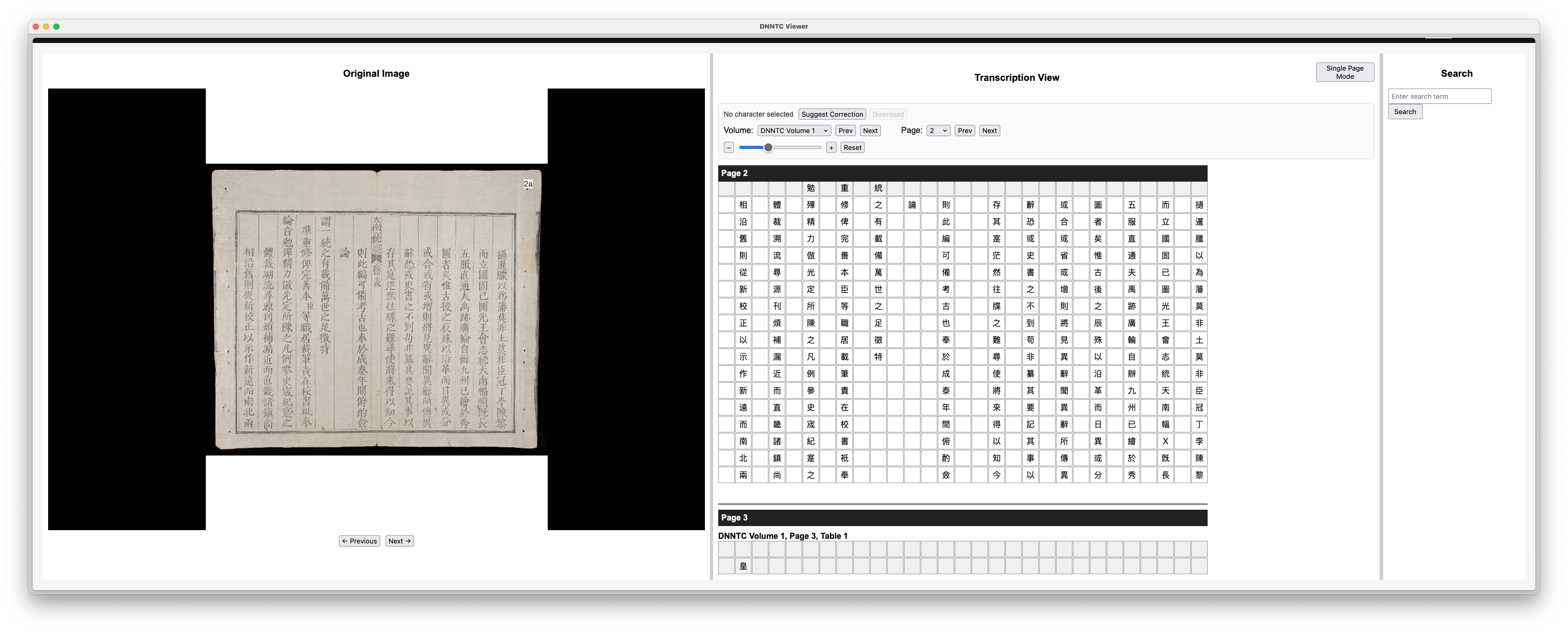 Screenshot 5: Stack Mode active with multiple pages visible
6. Search System
The search panel allows full-text searching across all volumes. Results are matched against the underlying character corpus.
Search Workflow
- Enter a query in the search box
- Press Enter or click Search
- Review matched snippets
- Click a result to jump to the corresponding page
Search Results
- Highlighted snippets show surrounding context
- Results are grouped by volume, page, and table
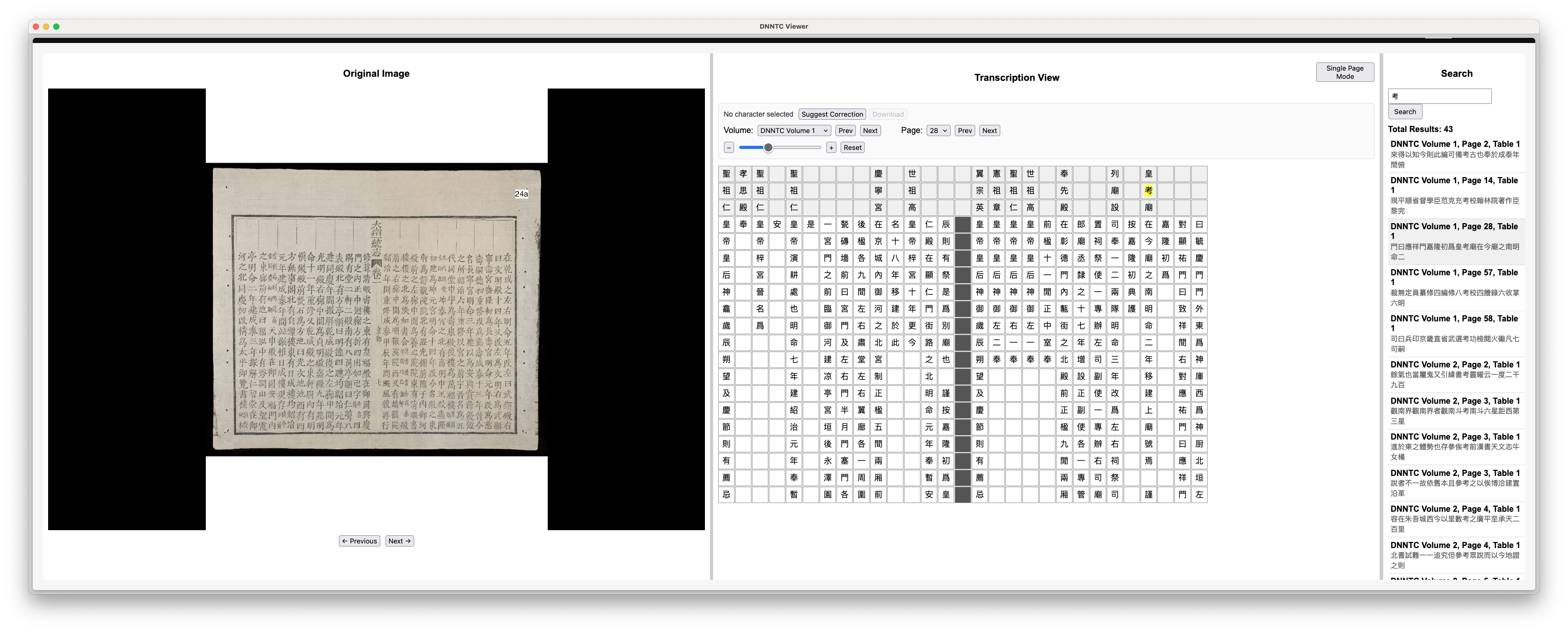 Screenshot 6: Search results panel with highlighted match
Show snippet highlighting and a clickable result entry.
7. Character Correction System
The correction system allows users to report transcription errors at the character level. This is a key part of dataset refinement and validation.
How to Submit a Correction
- Click a character in the transcription grid
- Click “Suggest Correction”
- Enter corrected character and optional notes
- Submit the correction
Correction Data Captured
- Original character
- Suggested correction
- Reason category
- Row/column metadata
- Source file and page context
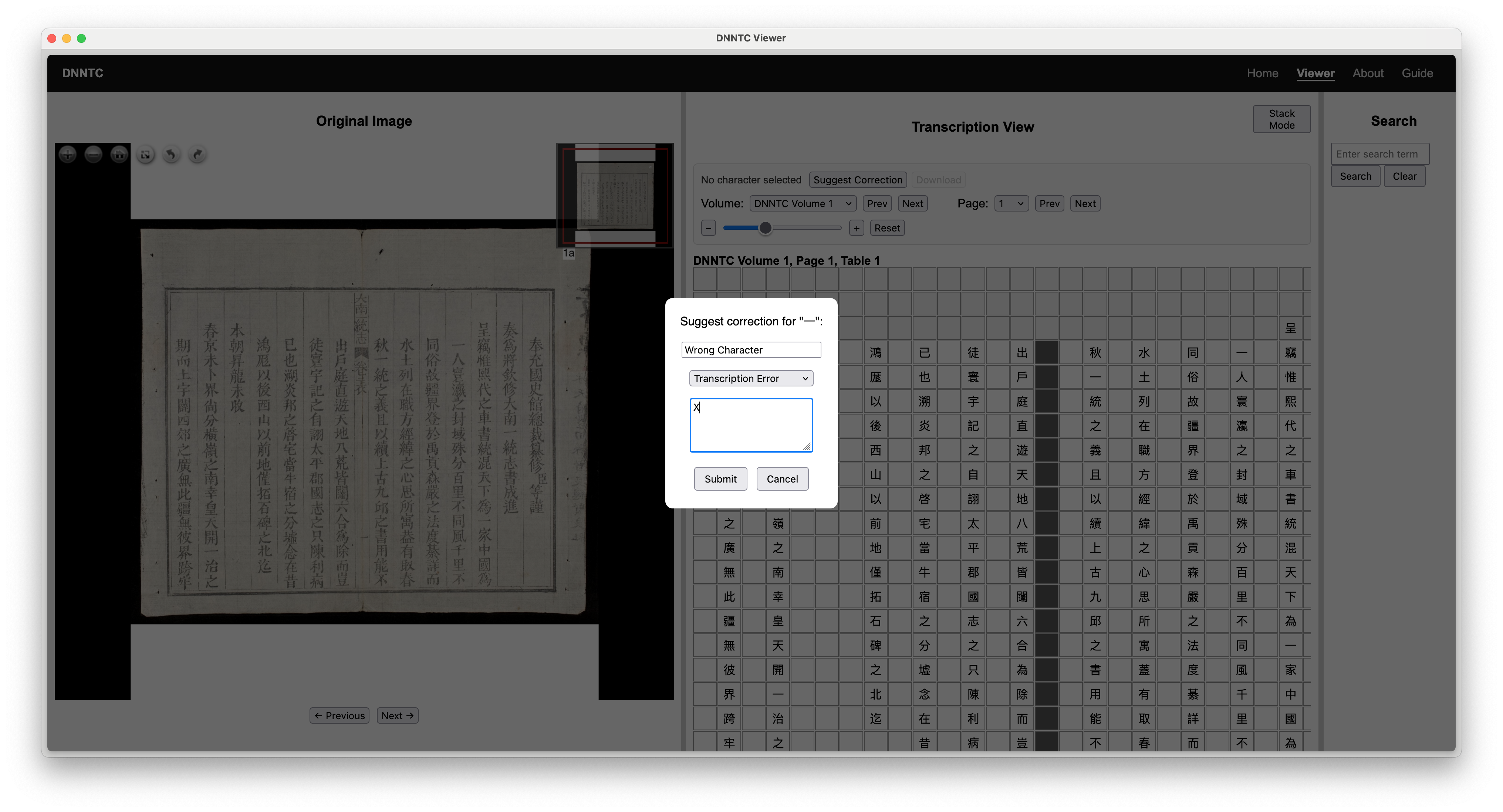
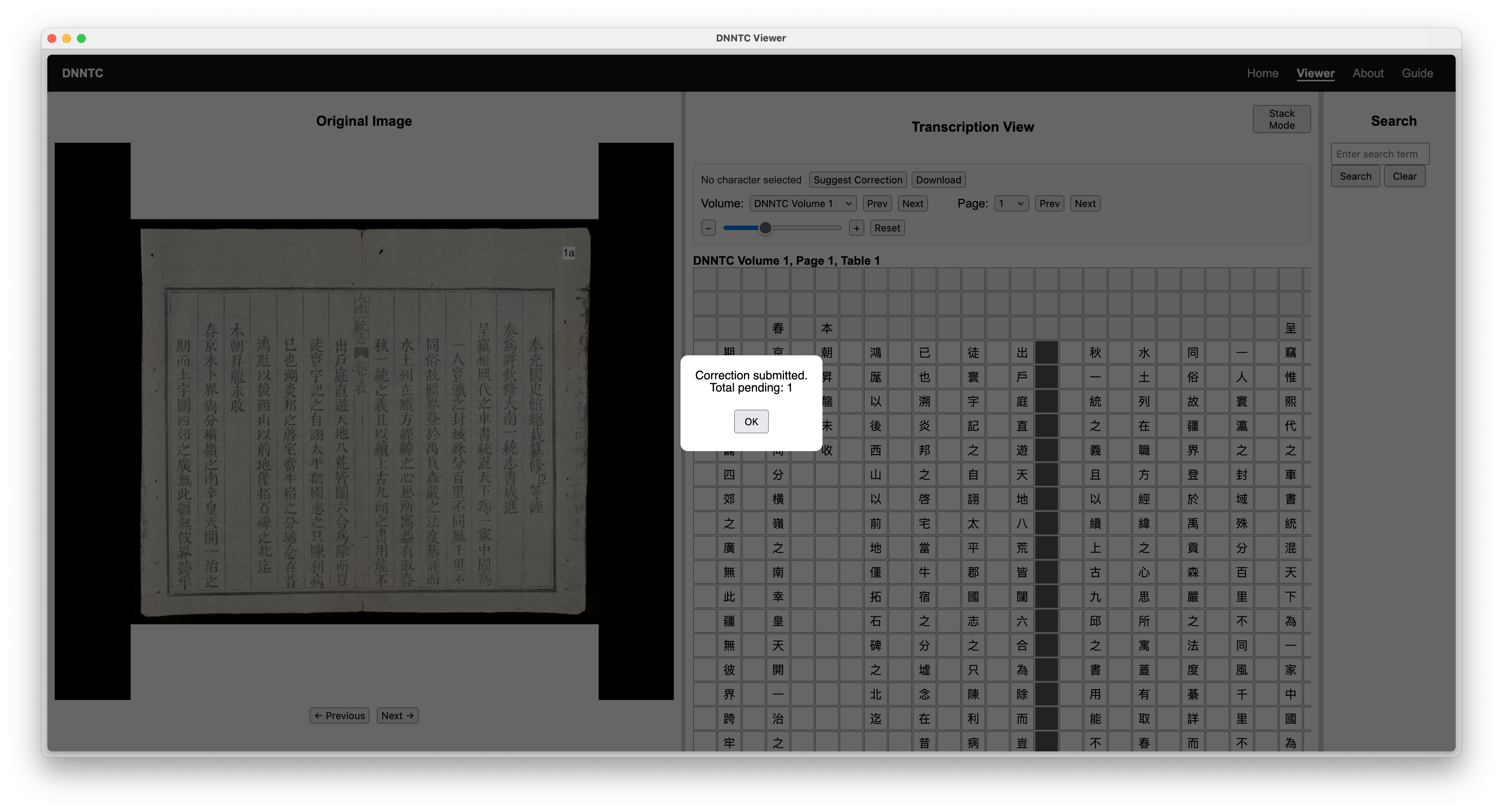 Screenshot 7 and 8: Correction modal open
8. Downloading Corrections
All submitted corrections are stored temporarily in the session and can be exported.
- Click “Download” to export JSON file
- File includes timestamped correction log
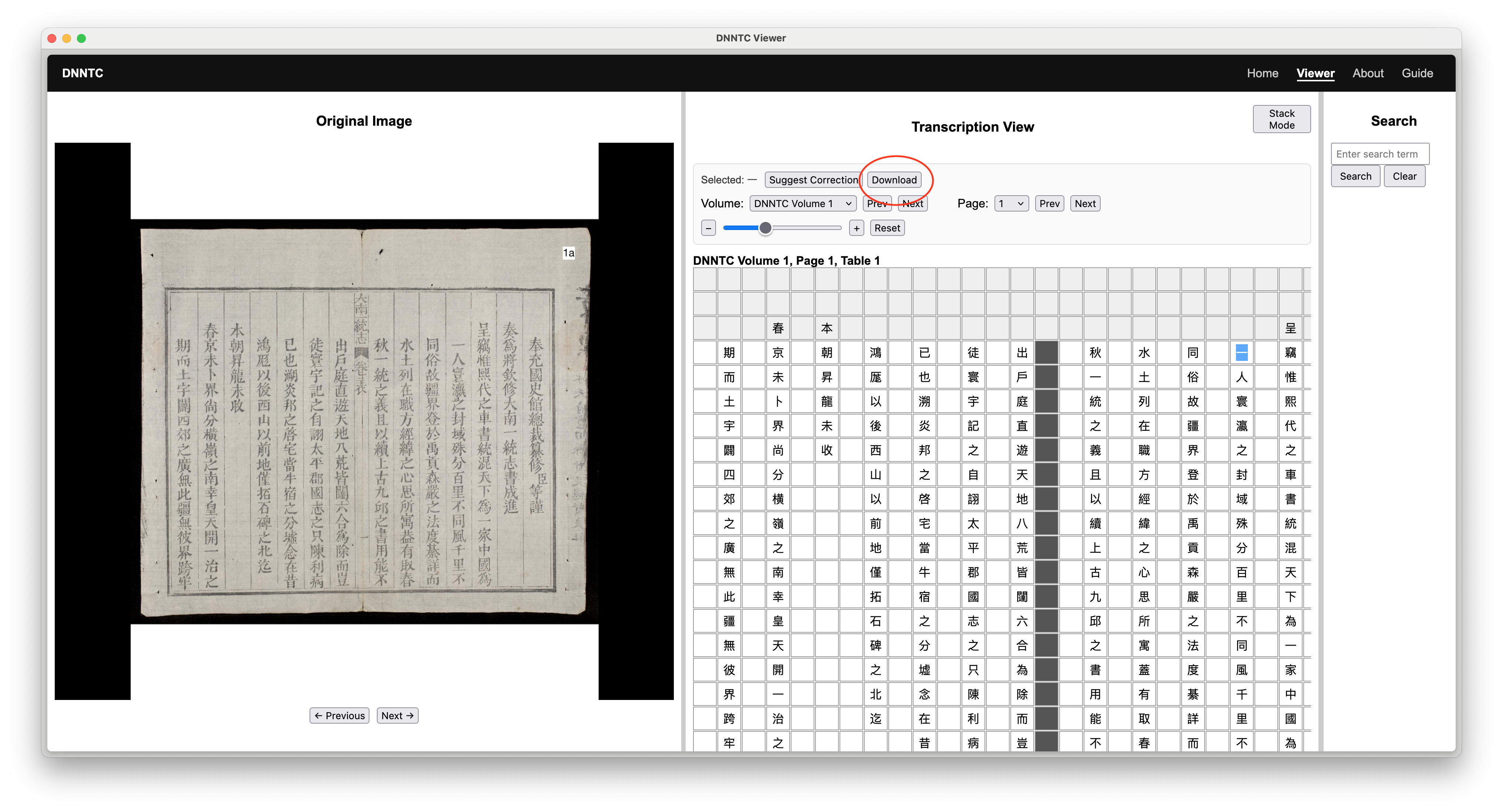 Screenshot 9: Download button active with pending corrections
9. Tips & Best Practices
- Use Stack Mode for long-range comparison across pages
- Use single-page mode for precise character correction
- Always verify against the original image before submitting corrections
- Use search to locate recurring patterns or terms
10. System Notes
This interface is designed for high-resolution transcription validation workflows. All edits are non-destructive and stored as correction metadata only.